Get started with Rahmi Messenger
Choose a language when you first open the app. Then use these steps to start a chat, invite people, and set up your app lock.
118 practical guides
DownloadGoogle PlayHelp topics
118 practical guides
- Private chat app for AndroidStart a private chat on Android by finding a contact and opening a direct conversation.
- Verify end-to-end encryption in a chatCompare the safety code in a private chat to verify the encryption identity of your contact.
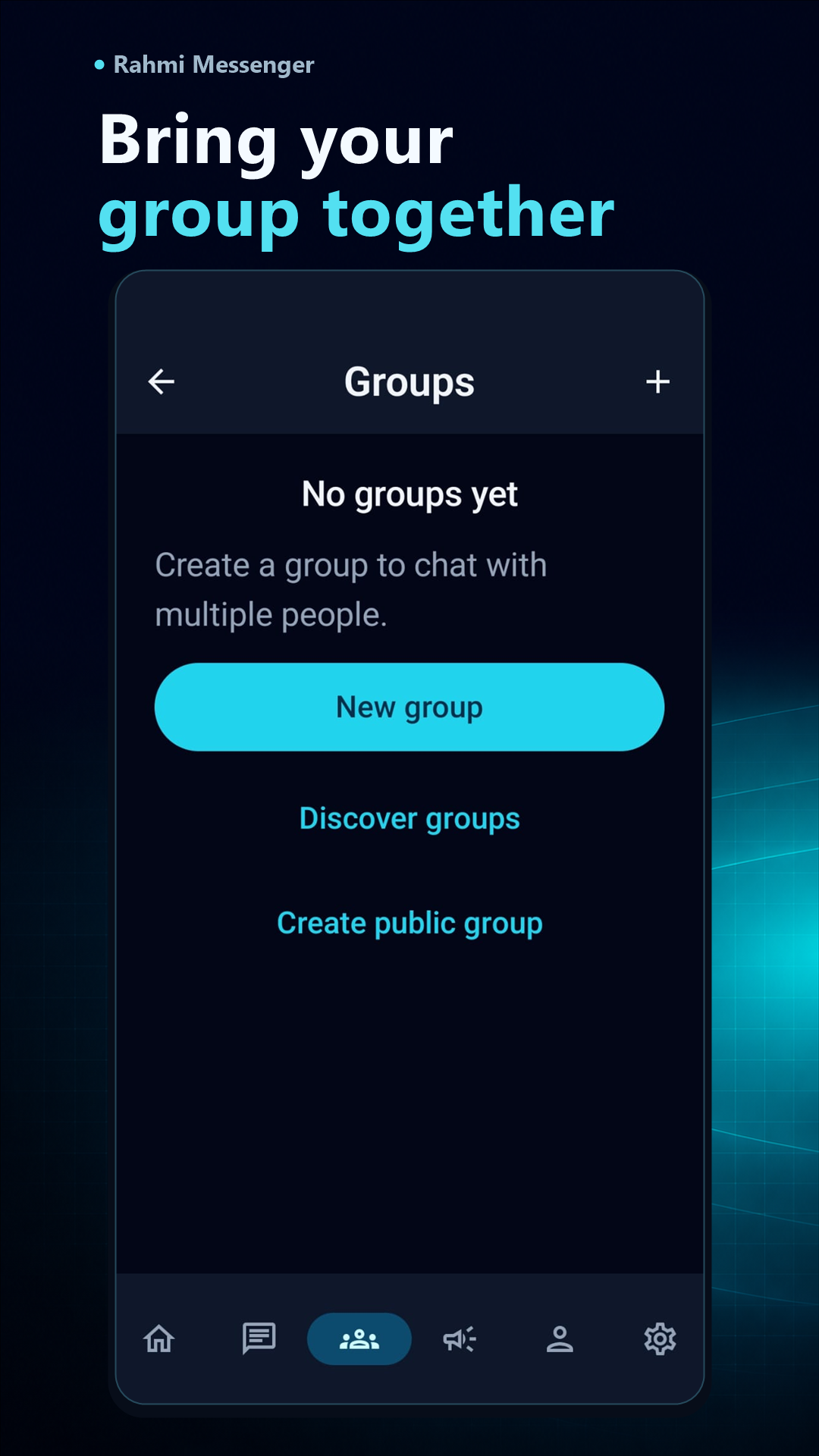
- Create a private group chatSet up a group for friends, family or a project, and keep the conversation in one place.
- Invite people to a group with a QR codeShare an invitation link or QR code and decide who can join a private group.
- Find public chat groupsSearch for groups on a topic and check a group before joining it.
- Create a channel for announcementsGive announcements and news their own channel so followers can find updates together.
- Organize chats in foldersSeparate work and personal chats or create a folder for unread conversations.
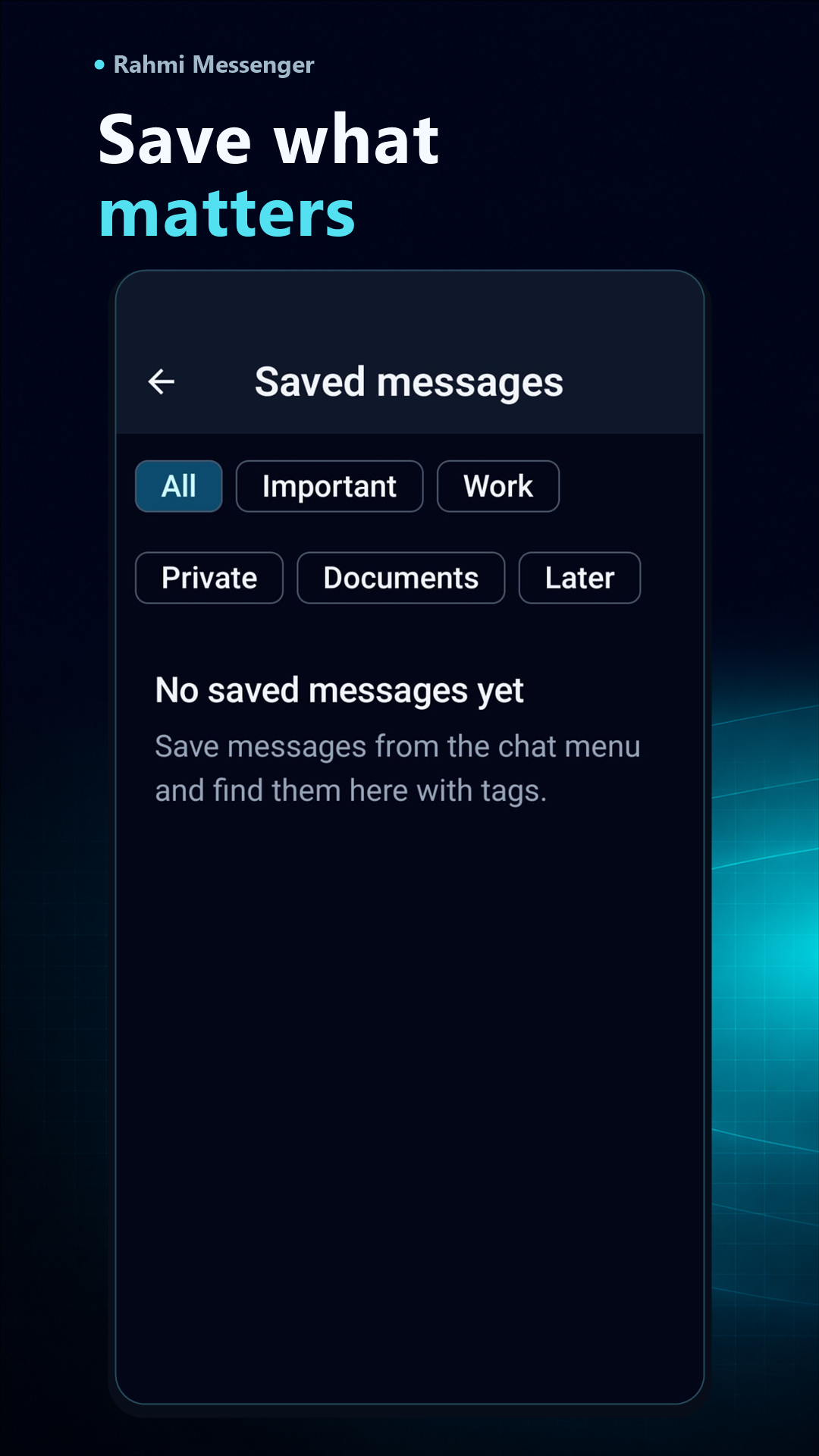
- Save and find important messagesSave an address, decision or document reference from a conversation and find it again using tags.
- Set a timer for disappearing messagesChoose when newly sent messages disappear from a conversation.
- Block a contact in the messengerUse blocking when you want to stop contact from a specific account. You can review blocked users later.
- Post a text or photo storyShare a brief update with a text story or a photo, with an optional caption.
- Find friends in a chat appFind someone by name or Rahmi ID and check the profile before sending a request.
- Share your profile with a QR codeHelp someone find your profile without spelling out your account name.
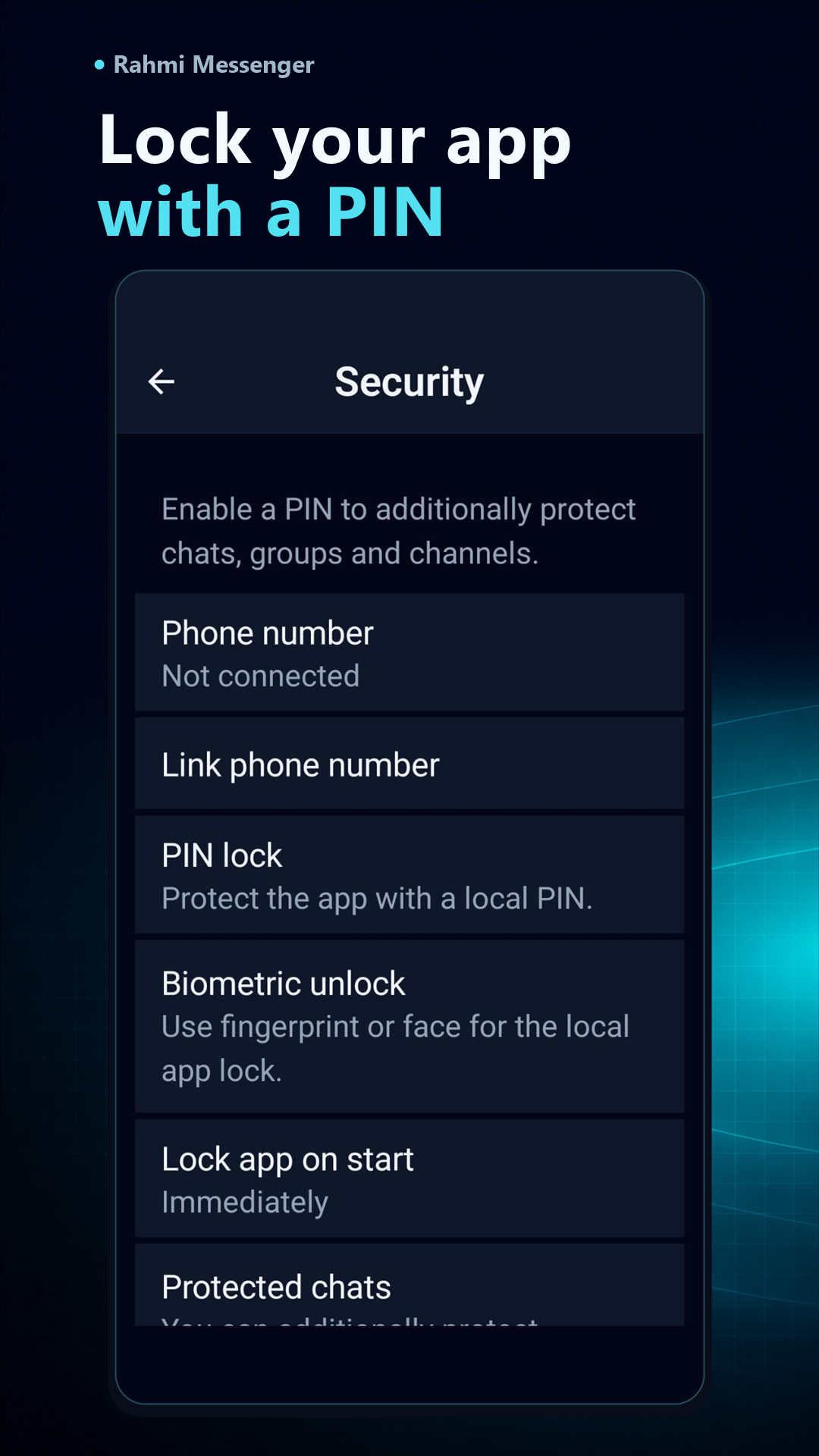
- Lock your messenger with a PINSet a local PIN for the app and enable biometric unlocking on supported Android devices.
- Enable two-factor protectionAdd a time-based code from an authenticator app to your account sign-in.
- Control who can find your phone numberChoose separately who can see your phone number and who can find you using it.
- Manage read receipts in chatsDecide whether to share read status and review the privacy options available in the app.
- Messenger app with voice callsStart a one-to-one voice call from a private chat when your account has access to the calling feature.
- Change the language of your Android messengerSearch for an app language during setup or switch languages later in Settings.
- Upload files to private cloud storageUse the cloud area to manage uploaded files and check the storage available with your Premium subscription.
- Install Rahmi Messenger on AndroidFind the official Android app, install it from Google Play and prepare your first conversation.
- Set up your first messenger conversationPrepare a first chat by checking the recipient, notification preferences and the information you share.
- Invite friends to Rahmi MessengerShare the official Play Store link and tell a friend how to find your profile after installing the app.
- Find phone contacts who use the messengerUse phonebook synchronization to look for existing contacts while keeping Android permissions under your control.
- Search for someone by Rahmi IDUse an exact Rahmi ID to distinguish a contact from people with similar display names.
- Check and respond to friend requestsReview an incoming friend request before accepting a new connection in Rahmi Messenger.
- Search for an older message in a chatFind a decision, address or keyword inside a conversation without scrolling through every message.
- Find photos, videos and voice messages in a chatUse the media search tools to locate shared content by type instead of relying on a remembered message date.
- Send a photo in a private chatChoose a photo from Android's picker, check the recipient and share it in the intended conversation.
- Share a PDF or document in a messenger chatAttach a document from your Android device and give the recipient enough context to identify the right file.
- Record and listen to a voice messageSend a recorded voice message when speaking is easier than typing, and check microphone access if recording fails.
- Reply to a specific chat messageAttach your response to the relevant message so people can follow a busy conversation.
- React to a message with an emojiAcknowledge a message with a reaction and choose a clear response for the conversation.
- Pin an important message in a conversationKeep a useful instruction or meeting detail easier to find by pinning its message where the app permits it.
- Format a message for clearer readingUse the messenger's text formatting controls to separate a heading, emphasis or code from the rest of a message.
- Schedule a chat message for laterPrepare a message in advance and select the delivery time offered by Rahmi Messenger.
- Send a message when a contact comes onlineUse the available online-delivery option when you want a prepared message to wait for your contact's presence.
- Replace a photo or file you sent by mistakeUse the replacement action for a supported outgoing attachment and check the corrected message afterwards.
- Send a meeting location in a chatShare a location for a meeting and distinguish a single map position from ongoing live location.
- Share live location for a limited periodUse live location in a private chat and check the chosen duration before sharing movement updates.
- Fix missing messenger notifications on AndroidCheck notification permission, conversation settings and Android restrictions when messages arrive without an alert.
- Hide message previews in notificationsReview message preview settings so that an alert reveals only the information you want visible on your phone.
- Archive a chat without confusing it with deletionMove a less active conversation into the archive and know where to look when you need it again.
- Mute a busy conversationReduce alerts from one chat while keeping the conversation available to read later.
- Create a folder for unread conversationsUse a chat folder with an unread filter to focus on conversations that still need attention.
- Share or import a chat folderUse the folder sharing controls to transfer an organizational setup and inspect imported choices before relying on them.
- Change dark mode and the messenger themeAdjust appearance settings in Rahmi Messenger and check the result in both the chat list and a conversation.
- Change your messenger profile photoSelect a recognizable profile picture and check how it appears after cropping.
- Choose who can see your online statusReview the messenger's online visibility setting separately from read receipts and phone-number discovery.
- Control who can see your profile pictureChoose the audience for your profile photo and keep profile visibility separate from chat access.
- Review active devices and sign out other sessionsInspect the devices associated with your account and use the displayed sign-out control for other sessions when needed.
- Check account login historyUse the security screen's login history to compare recent access records with your own activity.
- Report an abusive message or accountUse the messenger's report action for content that needs review, and block unwanted contact separately when appropriate.
- Unlock the messenger with Android biometricsEnable the available fingerprint or biometric option after setting up the app's local PIN lock.
- Add local PIN protection to an individual chatUse protected-chat controls to require the local app PIN before opening a selected private conversation.
- Protect a group conversation locally with a PINApply the messenger's local group protection and test access on your Android device.
- Require a local PIN before opening a channelUse channel protection to add a local unlock step for a selected channel on your device.
- Review group members and administrator controlsUse group information to understand who belongs to a conversation and which management actions your account can use.
- Review requests to join a private groupUse invitation approval to check prospective members before they enter a private group conversation.
- Find public channels by topicBrowse available public channels and read their details before following updates from an unfamiliar source.
- Delete a story you no longer want to shareRemove an unwanted story through its delete control and check the result in your story list.
- Check a photo story before publishingReview the image, caption and intended audience before confirming a messenger story.
- Start a group voice conversationUse group voice calling when your account and group have access to the feature, and check microphone controls before speaking.
- Share a link to a group voice callCreate a call invitation from the active group-call screen when the link control is available.
- Fix a voice call with no sound or microphoneCheck mute state, Android permission and audio routing when a messenger call connects without usable sound.
- Download a file from Rahmi CloudOpen or download a stored cloud file and check that you selected the correct document.
- Restore a file from the cloud trashCheck Rahmi Cloud's trash when you accidentally remove a file and want to restore it before it expires.
- Configure a provider in Rahmi AIUse the app's provider and model selection controls to prepare the AI area with your own supported service access.
- Send stickers, GIFs and animated emojisChoose an available visual reaction in the chat composer and check that it fits the conversation.
- Control automatic media downloads on mobile dataReview automatic download settings separately for mobile data and Wi-Fi when media uses more data than expected.
- Check your business profile before publishingReview the business information that you intend other people to see.
- Verify the opening hours in a business profileCompare the saved weekday schedule with the availability you actually intend to publish.
- Review a saved quick-reply templateCheck the title and message text before relying on a reusable business response.
- Check what greeting and away fields actually saveSeparate prepared business text from a confirmed automatic delivery function.
- Choose the audience for a profile postReview the visibility choice before saving text to your profile.
- Edit the intended profile postCheck the existing text and visibility before saving a revision.
- Distinguish archiving a profile post from deletionIdentify the archive action before changing the post list.
- Find a saved message through its tag filterCheck the active tag before treating a saved entry as missing.
- Remove the correct saved-message entryRead the saved-item action separately from the original conversation's controls.
- Check the state of a shared checklist itemCompare the selected item and its visible result after changing a check mark.
- Check whether quiet hours are availableRead the current screen before relying on a scheduled silent period.
- Adjust the messenger's chat text sizeCompare a familiar conversation after changing one readability setting.
- Check access to a chat backgroundSeparate the selected appearance from the entitlement required for a premium design.
- Distinguish media cache cleanup from message deletionRead the exact storage action before removing local cached material.
- Check whether media is saved to the galleryReview gallery preferences separately from automatic download settings.
- Review automatic media downloads while roamingCompare roaming choices with the separate Wi-Fi and mobile-data settings.
- Reduce animation in the chat interfaceCheck the available motion preferences separately from message content.
- Revise a scheduled message's text or timeCheck the existing scheduled entry instead of creating a second copy.
- Cancel the intended scheduled messageCheck the pending entry and the conversation separately after cancellation.
- Investigate a scheduled message that has not arrivedCompare the retained schedule with connectivity and the observed conversation result.
- Check a message while the connection is unavailableSeparate a draft, an active sending operation and a confirmed conversation result.
- Avoid duplicate messages after an uncertain sendCompare the conversation before repeating the same action.
- Verify the quoted message before replyingCheck both the reply reference and the person or group receiving your text.
- Check the size limit for an attachmentIdentify the media type and the actual prepared file before retrying an upload.
- Distinguish an audio attachment from a voice messageChoose the sending flow that matches the recording you actually want to share.
- Choose useful interests for a public groupReview the selected tags before creating a discoverable community.
- Check a public group's hashtag and identityCompare the hashtag with the name and description before relying on a search result.
- Verify the destination of a group invitationCheck the group shown by a link or QR invitation before joining or sharing it.
- Read your role before managing a channelDistinguish ownership, administration, moderation and subscription.
- Distinguish leaving a channel from muting itChoose the action that matches whether you want to remain subscribed.
- Understand hiding a channel in your own listRead the scope of the action before treating it as community deletion.
- Check that live location sharing has stoppedVerify the active share instead of only closing its map view.
- Choose a fixed location or a live shareDecide whether the recipient needs one place or continuing position updates.
- Read the remaining two-person voice-call timeCompare the current monthly allowance with the call you intend to make.
- Separate call eligibility from microphone accessRead the actual failure before changing permissions or purchasing anything.
- Check a group voice-call invitation before joiningCompare the conversation, intended participants and current call state.
- Check why Pro alone does not unlock Rahmi CloudRead the active subscription requirement separately from one-time purchases.
- Compare cloud usage with the available quotaCheck both the subscription and the space available before another upload.
- Verify that a cloud upload actually finishedCheck the stored file after the picker and progress indicator close.
- Verify a downloaded cloud file outside the appFind the completed local copy rather than relying only on an online preview.
- Check the AI provider's costs before connectingSeparate a provider's usage charges from purchases in the messenger.
- Match an AI key to the selected providerCheck the intended service before treating a connection error as a messenger sign-in problem.
- Check the account before restoring a purchaseCompare the Google Play purchase account with the messenger's recognized entitlement.
- Check the status of a Premium subscriptionRead the actual plan and billing state before interpreting feature access.
- Distinguish the local PIN from two-factor protectionIdentify which part of access you want to protect or troubleshoot.
- Check when the app locks againCompare the selected local lock delay with the behavior you observe.
- Verify a profile reached through a QR codeCompare the resulting profile with the person you actually intend to contact.
- Check the folder filter before recreating a chatCompare the active folder with the wider conversation list.